


API integration lets you send orders to AFF1 from your own landing or from a landing you host yourself. Your server receives the order form and sends the order to AFF1 with a POST request.
There are two ways to set it up:
- Archive — download a ready-made AFF1 landing with the API already set up and upload it to your hosting. The easiest way; see API integration: ready-made archive.
- Manual (expert mode) — you write the request yourself. This article is about this way.
Before you start
- The API works only for offer targets with API integration. In the offer list, such targets have a green API icon (API integration available).
- You need access to the offer target. If the offer is Upon the request, request access first.
- You need a server-side script (PHP or any other language) that receives the order form. The request is sent from your server, not from the visitor’s browser.
Never put your API key into the HTML or JavaScript of a page: anyone can open the page code and send orders with your key. Keep the key on the server only.
Where to find the API data
- Open the offer page and click API in the bar at the bottom.
- In the API integration window, open the Manual (expert mode) tab.
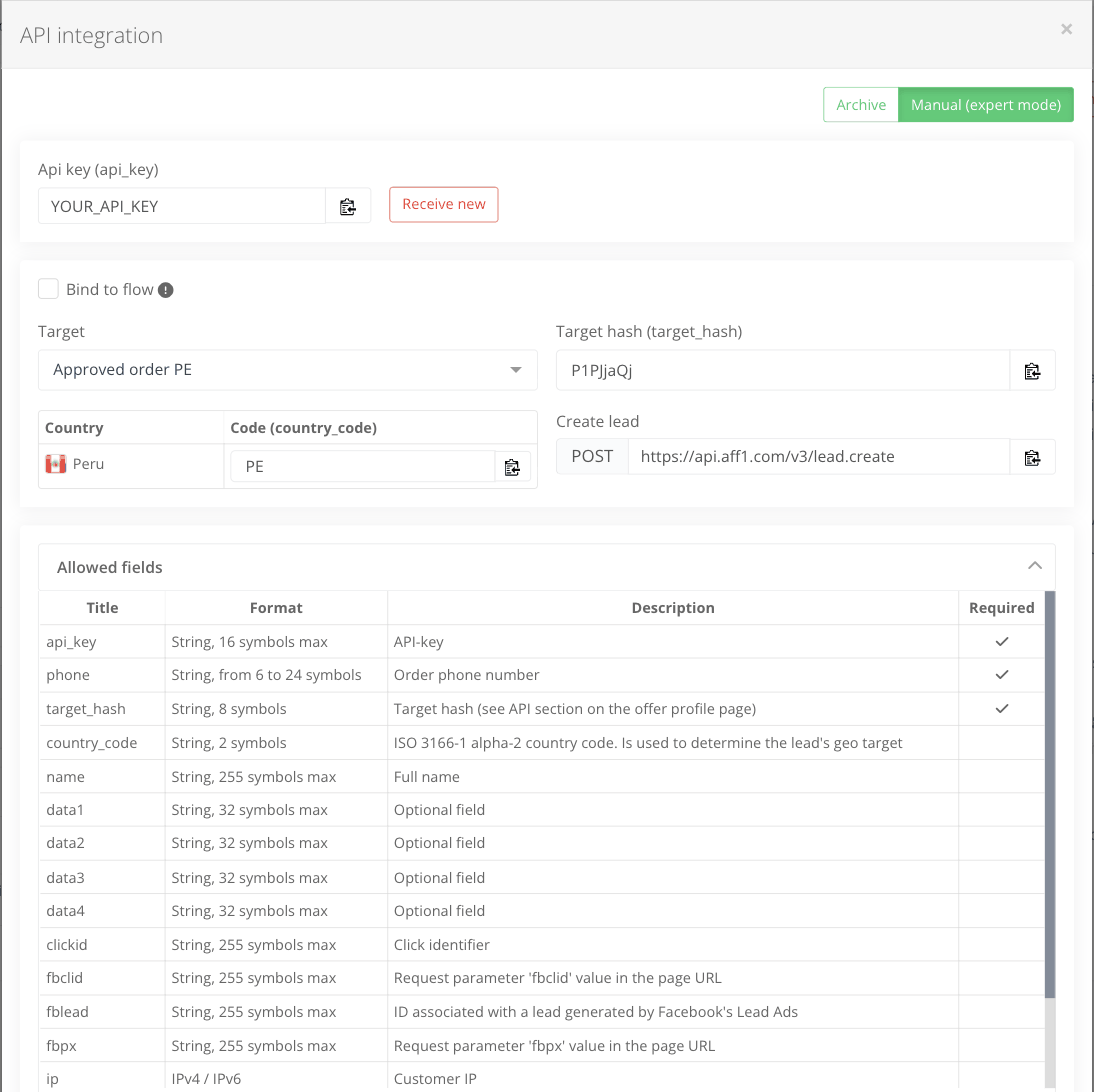
What you see in the tab:
- Api key (api_key) — your personal key. It is the same for all offers.
- Bind to flow — send the leads into one of your flows. Choose the Flow, and instead of Target hash (target_hash) the window shows Flow hash (flow_hash). Only flows whose target has API integration are listed.
- Target and the Country / Code (country_code) table — the target and the codes of its countries.
- Target hash (target_hash) — the ID of the target that you send in the request.
- Create lead — the request URL:
POST https://api.aff1.com/v3/lead.create. - Allowed fields — the fields you can send, and a PHP example below the table.
The full description of all methods and fields is in Tools → API documentation.
Receive new issues a new API key, and the current key stops working at once. All your landings and scripts that use the old key stop sending orders until you replace the key.
Send an order
Send a POST request to https://api.aff1.com/v3/lead.create with form fields:
| Field | Required | What to send |
|---|---|---|
api_key | yes | your API key |
target_hash or flow_hash | yes | target hash, or flow hash if you bind leads to a flow |
phone | yes | phone number from the form, 6–24 characters |
country_code | ISO 3166-1 alpha-2 country code (PE, PH…), used to determine the geo target | |
name | customer’s full name | |
ip, user_agent, referer, browser_locale | visitor’s IP, User-Agent, page URL and 2-letter browser language | |
clickid | your tracker’s click ID; it comes back in postbacks as {clickid} | |
data1…data4 | your own parameters, up to 32 characters each | |
fbclid, fbpx | for the Facebook Conversions API |
Address, email, comment, quantity, preferred call time and other fields are described in Tools → API documentation.
An example with curl (replace the values with yours):
curl https://api.aff1.com/v3/lead.create \
  -F api_key=YOUR_API_KEY \
  -F target_hash=AbCd1234 \
  -F country_code=PE \
  -F name="Juan Perez" \
  -F phone=51900000000 \
  -F clickid=abc123
The PHP example in the Manual (expert mode) tab already has your key and hash and also sends the visitor’s IP, User-Agent, referer and language.
Response and errors
A successful response:
{"status":"success","data":{"lead_hash":"..."}}Save lead_hash: it is the order ID in AFF1, and you need it to check the order status.
If something is wrong, the response has "status":"error" with error_code, error_message and error_fields:
| Error | What it means |
|---|---|
FORBIDDEN_ERROR | Access with this API key is denied: the key is wrong or was replaced |
VALIDATION_ERROR | A field is missing or has a wrong format; error_fields shows which one |
NOT_VALID_TARGET_HASH | Wrong target_hash |
CANNOT_DETECT_TARGET_GEO | AFF1 could not determine the geo target; send country_code of a country of this target |
LEAD_DOUBLE | Duplicate: an order with the same phone for the same geo target came less than 30 minutes ago. error_fields contains the lead_hash of the first order |
HTTP 429 | Too many orders, the anti-spam limit worked (see below) |
SERVER_ERROR | Error on the AFF1 side; repeat the request later |
Anti-spam limits
Standard limits on the number of orders you add:
- 20 orders per minute;
- 60 orders in the last 5 minutes;
- 100 orders in the last 15 minutes.
If you go over a limit, new orders are blocked for the next hour (HTTP 429). If you have a heavy flow of valid orders, ask your personal manager to change or turn off the limits.
Check order statuses
GET https://api.aff1.com/v3/lead.info with api_key and hashes — one or more lead_hash values separated by commas.
| Status | Meaning |
|---|---|
new | the order is added and not processed yet |
approved | the order is confirmed (approved) |
cancelled | the order is cancelled |
trashed | the order is cancelled as trash: invalid data, a duplicate or a test |
To get statuses in real time, use a postback instead of polling lead.info.
Your balance: GET https://api.aff1.com/v3/my.balance with api_key returns balance_usd, balance_eur, hold_usd and hold_eur.
Check that it works
- Submit the form on your landing and check that your script gets a response with
lead_hash. - Find the order in Statistics → Leads.
- If you use a postback, check that your tracker received it.
Test orders go to trash. If you need to check the whole funnel up to the call centre, agree on the test with your personal manager first.