


AFF1 can give you the offer landing and pre-landing as an archive prepared for Keitaro. You upload it to your tracker, the pages open from your Keitaro domain without a redirect to AFF1, and orders go to AFF1 through the API.
Keitaro uses other names for the same pages. The AFF1 pre-landing is a landing page in Keitaro. The AFF1 landing with the order form is an offer in Keitaro.
Before you start
- You have access to the offer, and the offer has the API integration available icon in the offer list.
- You have an AFF1 flow for this offer. Only flows whose target has API integration can be selected for the archive.
- Keitaro is installed and has a domain with the OK status.
- The AFF1 postback to Keitaro is set up in this flow (or as a global postback). See How to connect AFF1 to the Keitaro tracker.
Download the archive in AFF1
- Open the offer page and click API in the bottom bar.
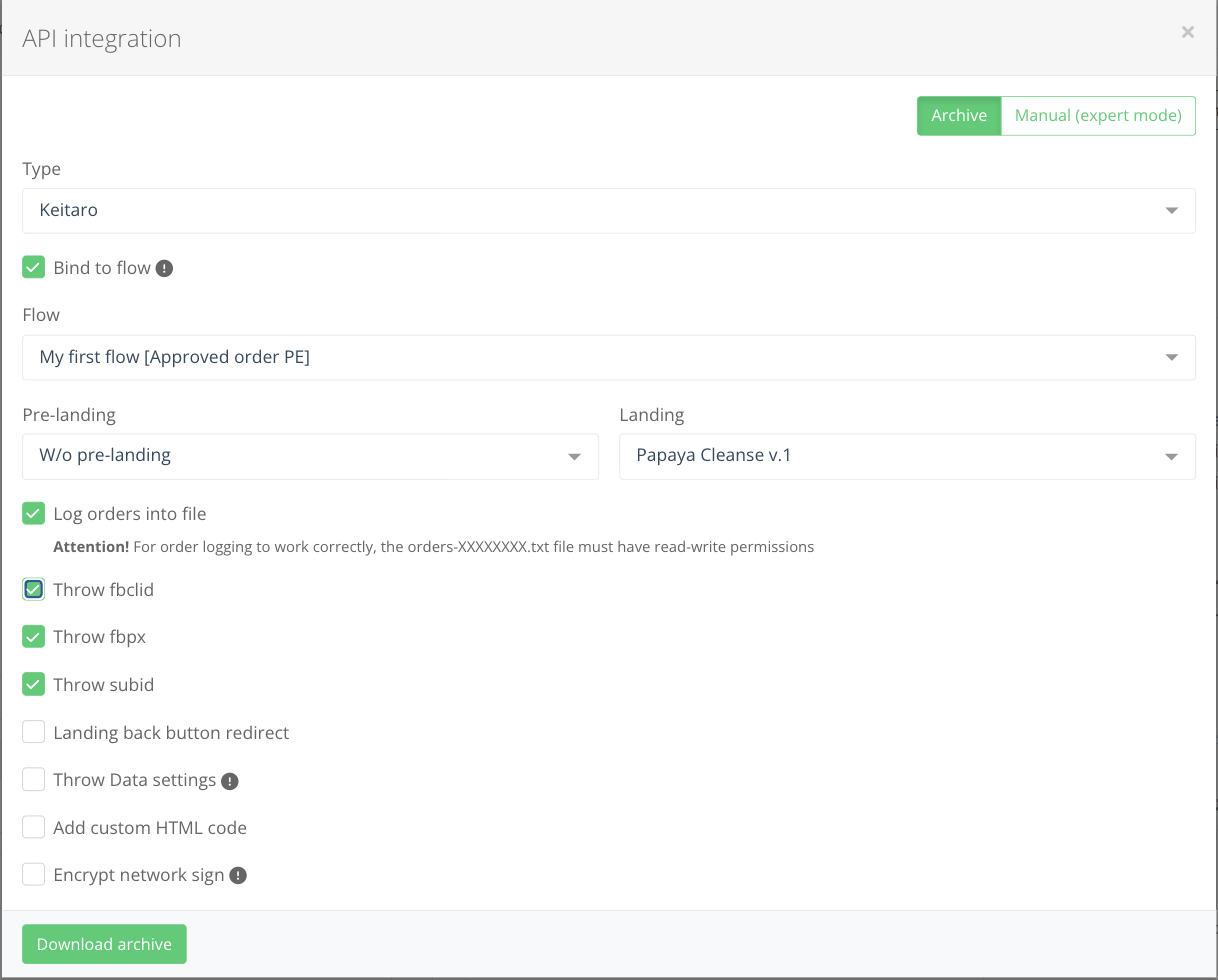
- In the API integration window, open the Archive tab.
- In Type, select Keitaro.
- Turn on Bind to flow and select your Flow.
- Select a Pre-landing (or W/o pre-landing) and a Landing.
- Turn on the options you need (see the table below). Always turn on Throw subid.
- Click Download archive.
| Option | What it does |
|---|---|
| Log orders into file | Writes orders to the file orders-XXXXXXXX.txt. The file must have read and write permissions on the server. |
| Throw fbclid and Throw fbpx | Pass the Facebook click ID and pixel ID with the order. Turn them on if you use Facebook Conversion API in AFF1. |
| Throw subid | Passes the Keitaro click ID (subid) with the order, so the AFF1 postback can return the conversion to the right click. |
| Landing back button redirect | Sends visitors who press “Back” on the landing to the URL in Back button redirect url. |
| Throw Data settings | Lets you set Titles of data1..data4 parameters: names of URL parameters (Latin letters, digits and _) for data1–data4. |
| Add custom HTML code | Adds your code to <body> or <head> of the pre-landing, the landing or the successful order page. |
| Encrypt network sign | Converts the integration JavaScript code to base64. |
Without Throw subid, AFF1 does not get the Keitaro click ID, and Keitaro cannot record conversions from these pages.
Allow PHP in Keitaro
AFF1 archives need PHP, and Keitaro runs PHP in local pages only when this is allowed.
- In Keitaro, open Settings → Main.
- Turn on Allow PHP in local landing pages.
- Click Save.
Prepare the files
Unpack the downloaded archive on your computer and check its contents. It is prepared for Keitaro. You need:
- the landing (the page with the order form): you upload it to Keitaro as a local offer;
- the pre-landing, if you selected one: you upload it as a local landing page.
Keitaro accepts local pages only as ZIP files. If the archive already contains ZIP files for Keitaro, upload them as they are. If it contains folders, compress each folder into a separate ZIP file. The main file of the page must be index.php or index.html.
Upload the landing as a local offer
- In Keitaro, open Offers and click Create.
- On the Main tab, enter the Offer name. Optionally, select AFF1 in Affiliate network to see it in reports.
- Select Local. In ZIP file, click Choose file and select the landing ZIP. Leave Folder empty: Keitaro creates it automatically.
- On the Settings tab, select CPA (per action) in Payout type and keep From param ‘payout’ turned on.
- Click Create.
Upload the pre-landing as a local landing page
Skip this step if you work without a pre-landing.
- Open the Landings Pages section and click Create.
- Enter the Name and select Local.
- In ZIP file, click Choose file and select the pre-landing ZIP.
- Click Create.
In Keitaro, links from a landing page to the offer must use the {offer} macro, for example <a href="{offer}">Order</a>. The Create Landing Page window shows this code in the Offer link block.
Build the campaign flow
- Open Campaigns, click Create (or open your campaign) and select the Domain on the General tab.
- Click Create Flow and open the Schema tab.
- Select Landing pages & offers.
- Click Add landing pages and select the pre-landing. Skip this if you have no pre-landing.
- Click Add offers and select the local offer.
- Click Apply and save the campaign.
- Copy the Campaign URL on the Tracking tab and use it in your ads.
If you use a pre-landing, open its code from the flow Schema (the edit icon next to the landing page) and check that the buttons leading to the order page use {offer} as the link. Replace other links to the order page with {offer}.
Check that it works
- Open the Campaign URL in your browser. The pre-landing (or the landing) must open on your Keitaro domain.
- On the pre-landing, click the order button. The AFF1 landing must open.
- When the first order comes, check that it appears in AFF1 in Statistics → Leads, that Keitaro shows the postback in Maintenance → Logs → Postbacks, and the conversion in Reports → Conversions.
Common problems
The flow is not in the Bind to flow list. Only flows whose target has API integration are shown. Check that the offer has API integration and that the flow uses the right target.
The page does not work after upload. Check that Allow PHP in local landing pages is turned on in Settings → Main, then upload the ZIP again.
Images do not load. In Keitaro, image paths in the page code must be relative (img/photo.png, not /img/photo.png). If you edited the files, check the paths.
The button on the pre-landing does not open the landing. The link must be {offer}, and the flow schema must have both the landing page and the offer.
Orders come to AFF1, but Keitaro has no conversions. Check that Throw subid was on when you downloaded the archive, and that the flow has the postback to Keitaro. Download the archive again if needed.
The page shows “Timed out”. Keitaro stops pages that load too long. Open the browser console and look for scripts or resources that do not load.